VPN Privacy & Leak Testing

LittleAMB provides practical cybersecurity and online privacy information to help you better understand common digital risks, check your current protection, and make informed decisions about the tools and settings you use every day.
Do You Really Need a VPN?
A VPN can improve your online privacy by encrypting your internet connection and masking your public IP address, but it does not make you completely anonymous or protect you from every online threat. Whether you need one depends on how you use the internet, the networks you connect to, and what you want to protect.
A VPN can be especially useful when you use public Wi-Fi, want to reduce how much your internet provider can see about your browsing activity, or want to prevent websites from seeing your normal public IP address. It can also help when accessing services while travelling, depending on the service and its terms.
What a VPN Does Not Protect You From
A VPN does not replace antivirus software, stop phishing attempts, prevent you from downloading malicious files, or protect accounts that use weak or reused passwords. It also cannot make you completely anonymous online. A VPN is one layer of protection, and it works best alongside good security habits, updated devices, strong passwords, and other appropriate security tools.
Free VPN vs. Paid VPN: What’s the Difference?
Free VPNs can be useful for occasional or limited use, but they often come with restrictions such as lower speeds, data limits, fewer server locations, advertising, or fewer privacy and security features. Paid VPNs generally provide broader server access, higher performance, more features, and fewer usage restrictions, but paying for a VPN does not automatically make it trustworthy. The important factors are the provider’s privacy policy, logging practices, security features, reputation, and how well the service fits your needs.
Is a VPN Right for You?
Whether a VPN is useful depends on how you use the internet and what you want to protect. You may benefit from one if you regularly use public Wi-Fi, want to reduce the amount of browsing information visible to your internet provider, need additional privacy from websites and online services, or frequently connect while travelling. If you already use secure home networks and your main concerns are malware, phishing, weak passwords, or account security, a VPN alone will not address those risks.
How to Check Whether Your VPN Is Working
One of the easiest ways to understand what a VPN is changing is to compare your connection before and after you turn it on. Without a VPN, your browser will normally show information associated with your regular internet connection. After connecting to a VPN, you can repeat the same checks to see whether your public IP address, DNS information, WebRTC exposure, and IPv6 connection have changed as expected.
- Public IP address
This is the internet-facing address websites and online services can see. Without a VPN, it is normally associated with your regular internet connection. With a VPN connected, it should usually change to an address associated with the VPN service.
- DNS
DNS stands for Domain Name System. It translates website names into the numerical IP addresses computers use to connect. A DNS check can show which DNS servers are handling your requests and whether those requests are being routed as expected through the VPN. - WebRTC
WebRTC stands for Web Real-Time Communication. It allows browsers to support features such as voice, video, and direct browser-to-browser communication. In some situations, it can reveal IP-related information even when a VPN is connected, which is why it is worth checking. - IPv6
IPv6 stands for Internet Protocol version 6. It is a newer addressing system designed to provide far more internet addresses than IPv4. If a VPN does not handle IPv6 traffic properly, that traffic may remain visible outside the VPN tunnel, so it is useful to test.
The following examples show how a VPN connection can appear during privacy and leak testing. Each example compares information reported by the VPN application with results from BrowserLeaks. These screenshots are intended to demonstrate what to look for when checking public IP addresses, DNS handling, WebRTC information, IPv6 results, and approximate IP geolocation.
IP geolocation results can vary between databases, so a nearby city or regional mismatch does not automatically indicate a VPN leak. The important checks are whether your real public IP address, ISP, or actual location remain exposed when the VPN is connected.
Canada — VPN OFF Baseline
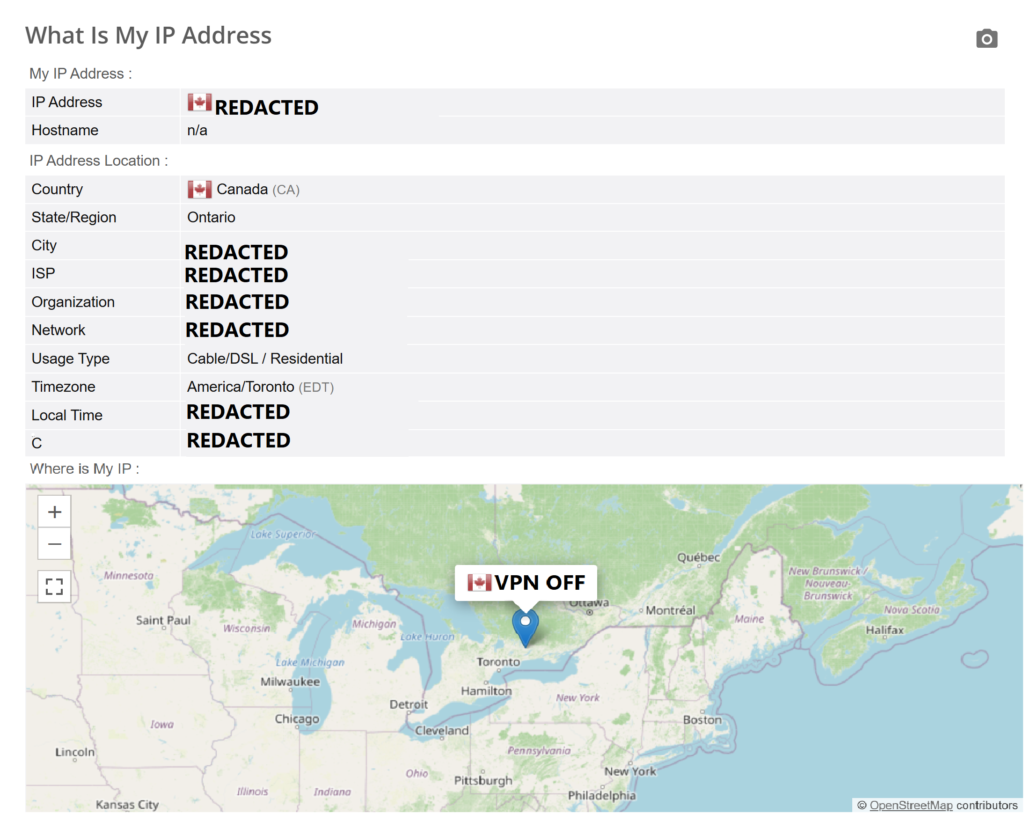
This baseline example shows the connection before the VPN is enabled. BrowserLeaks can display the public IP address, DNS information, WebRTC-related information, and approximate IP geolocation associated with the normal internet connection. These results provide a reference point for comparison after the VPN is turned on.
Canada — VPN ON
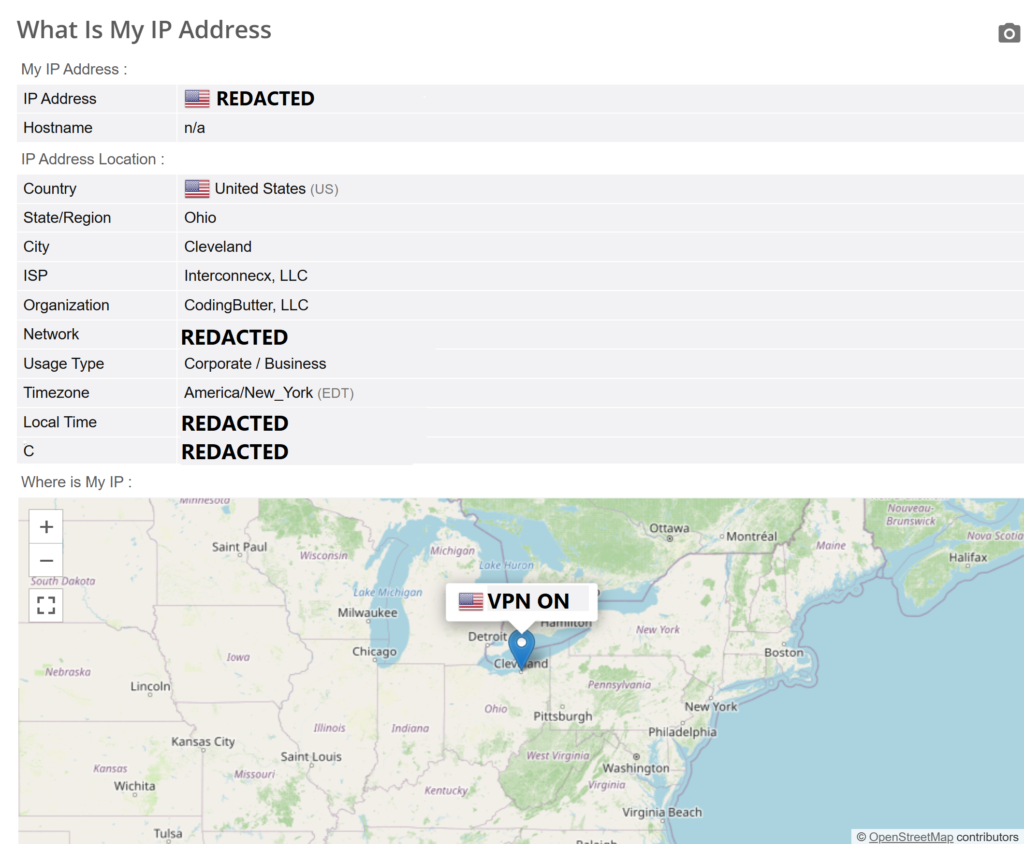
With the VPN enabled, the public-facing connection information should change from the original baseline. The IP address and approximate location shown by BrowserLeaks should now correspond to the VPN connection rather than the normal internet connection. DNS and WebRTC results should also be checked to make sure they are not exposing the original ISP or location. Small differences in city-level geolocation can occur because IP-location databases do not always identify the exact same nearby city.
MultiHop VPN Connection
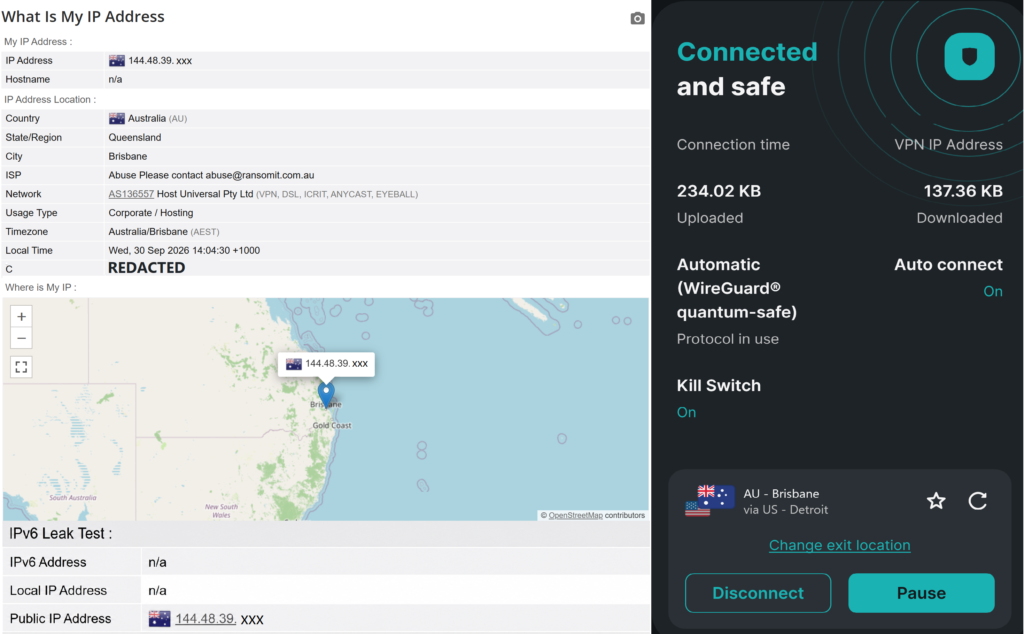
This MultiHop example shows a VPN connection routed through more than one VPN server location. The VPN application displays the selected route, while BrowserLeaks shows the public-facing IP address and approximate geolocation seen by websites and online services. The BrowserLeaks result confirms the visible exit connection, but it does not independently verify every server used along the full MultiHop route. As with other VPN tests, the important checks are whether the real public IP address, ISP, DNS information, or actual location remain exposed.
What to Look for in Your VPN Test Results
When reviewing your VPN test results, compare what you see with the VPN turned off and then again with the VPN turned on. The public IP address should change, and the approximate location should normally reflect the VPN server or exit location rather than your real connection.
Check the ISP or organization field as well. With the VPN enabled, it may show a hosting or network provider associated with the VPN exit server rather than the VPN brand itself. This does not automatically indicate a leak.
DNS, WebRTC, and IPv6 results should also be reviewed carefully. The main concern is whether your real public IP address, ISP, DNS information, or actual location remain visible while the VPN is connected. Small differences in city-level geolocation can occur because different IP-location databases may identify the same VPN address differently.
What to Do If Your VPN Test Shows a Leak
If your VPN test still shows your real public IP address, ISP, DNS information, or actual location while the VPN is connected, disconnect and reconnect the VPN, then run the tests again. You can also try a different VPN server to see whether the result changes.
If the issue continues, check the VPN application for DNS, WebRTC, IPv6, or leak-protection settings that may need to be enabled. Make sure the VPN software and browser are up to date as well.
If your real connection information continues to appear after retesting, contact the VPN provider’s support team and provide the relevant test results. Avoid posting unredacted screenshots publicly, because they may contain identifying network or location information.
Want to Test Your Own Connection?
You can use BrowserLeaks to check your public IP address, DNS servers, WebRTC information, and IPv6 results. For a useful comparison, run the tests once with your VPN turned off and then again with it turned on. Compare the results to see whether your public-facing connection information changes as expected.
Considering a VPN?
If you do not already use a VPN and would like to compare available options, visit our VPN Recommendations page to review the services currently featured on LittleAMB.